Create your web account
Use this page to set up your organisation on the ViziCAL website. Your web account holds your licences and the results from every computer that runs ViziCAL.
Before you start
- Check whether your organisation already has a ViziCAL account. If it does, ask the person who manages it to invite you. Then follow Join an organisation you've been invited to.
- Have your work email address ready.
- Decide on a password of at least 12 characters, with at least one letter and one number.
Create an account for your organisation
- Go to the ViziCAL website.
- Click Sign in at the top right.
- Click Create an account.
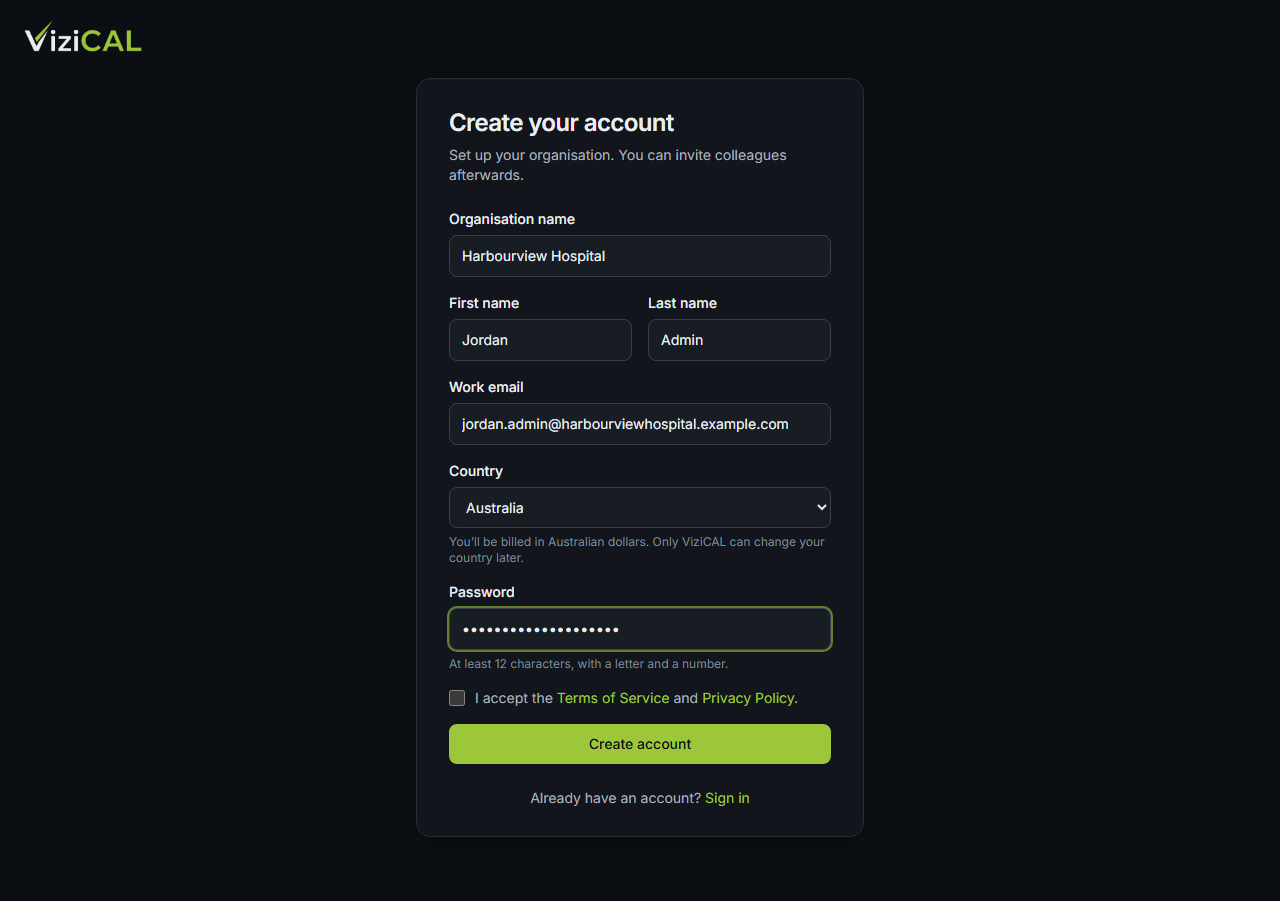
- Fill in the Create your account form:
- Organisation name: the name of your hospital, practice or company.
- First name and Last name.
- Work email: you sign in with this address.
- Country: where your organisation is. This sets the currency you're billed in.
- Password.
- Tick I accept the Terms of Service and Privacy Policy.
- Click Create account.
Warning
Choose your Country carefully. You can't change it yourself later. Only ViziCAL can change it.
What you'll see
You're signed in, and the Technical menu opens. It's empty until a computer running ViziCAL is linked to your organisation.
You're the Customer Admin for your organisation. This means you can buy licences, invite colleagues and change your organisation's details.
Buy your licences
You need one ViziCAL licence for each computer you want to calibrate.
- In the top menu, click Purchases → Shop.
- Type a Quantity for the Workstation licence and anything else you need, such as a ViziCAL Photometer.
- To keep your results and reports in your web account, click Switch on web service. There's nothing to pay until it renews a year later.
- Click Continue to checkout and follow the steps to pay.
See Shop for details.
Your licences appear under Technical → Licences.
Note
Each workstation needs a Workstation licence. The web service is switched on for your whole organisation, not for each licence. See Licence types.
Join an organisation you've been invited to
If your organisation already uses ViziCAL, a Customer Admin can invite you. You'll get an email with a link.
- Open the invitation email and click the link.
- On the Join page, check the organisation name and your email address.
- Type your First name, Last name and a Password.
- Click Accept and continue.
You're signed in. What you can see depends on the role your Customer Admin gave you:
| Role | What you can do |
|---|---|
| Customer Admin | Everything, including purchasing, billing and users |
| Technical | Workstations, displays, calibration and QA records. Can see licences and download the app |
| View Only | Read records and reports |
Turn on two-factor authentication (recommended)
Two-factor authentication adds a second step when you sign in. It protects your organisation's records if someone learns your password.
- Click your name at the top right, then My account.
- Under Two-factor authentication, click Set up two-factor authentication.
- Scan the QR code with an authenticator app, such as Microsoft Authenticator, Google Authenticator or 1Password.
- Type the 6-digit code the app shows into Authentication code.
- Click Turn on.
- Save the recovery codes somewhere safe, then click I've saved my codes.
Warning
Each recovery code signs you in once if you lose your phone. They won't be shown again.
Common problems
- I've forgotten my password
- On the sign-in page, click Forgot your password?. Type your email address. You'll get an email with a link to choose a new password.
- I had an account on the old myxraydose.com website
- You don't need a new account. On the sign-in page, type your email address or your old username in Email or username, and your old password.
- The invitation link doesn't work
- The page says Invitation unavailable. The invitation may have expired or already been used. Ask your Customer Admin to send a new one.