Sign in and two-factor authentication
Use this page to sign in to your web account, reset a forgotten password, and use two-factor authentication.
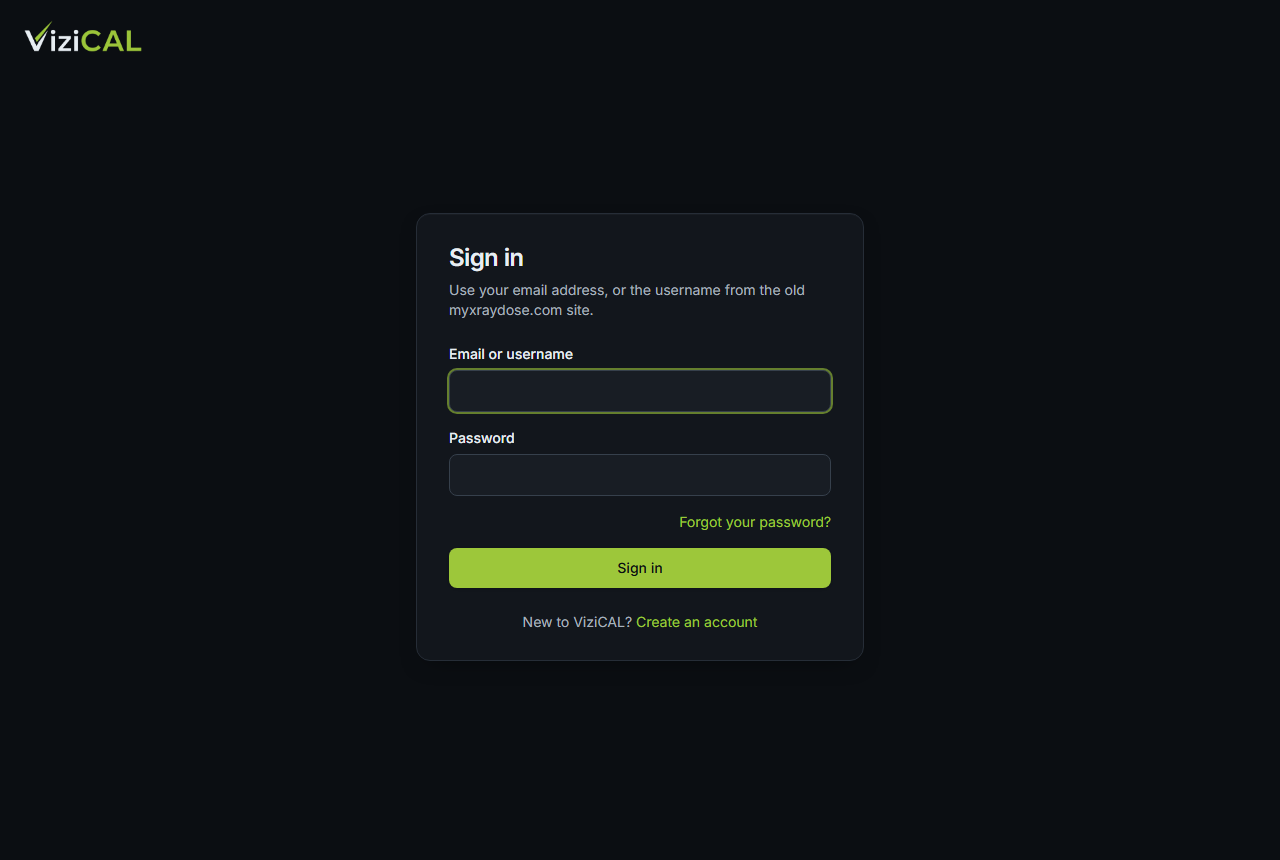
Sign in
- Go to the ViziCAL website and click Sign in.
- In Email or username, type your email address. If you had an account on the old myxraydose.com website, you can also use your old username.
- Type your Password.
- Click Sign in.
If two-factor authentication is on, ViziCAL asks for a code next:
- Open your authenticator app on your phone.
- Type the 6-digit code it shows into Authentication code.
- Click Verify.
Lost your phone? Click Use a recovery code instead, and type one of the recovery codes you saved when you set up two-factor authentication. Each code works once.
Reset a forgotten password
- On the sign-in page, click Forgot your password?.
- Type your Email and click Send reset link.
- Open the email and click the link.
- Type a New password: at least 12 characters, with a letter and a number.
- Click Save password.
The page says Password changed. You're signed out everywhere: sign in again with your new password.
Turn on two-factor authentication
Two-factor authentication asks for a code from your phone as well as your password. It protects your organisation's records if someone learns your password.
- Click your name at the top right, then My account.
- Under Two-factor authentication, click Set up two-factor authentication.
- Scan the QR code with an authenticator app, such as Microsoft Authenticator, Google Authenticator or 1Password. If you can't scan it, type the key shown under Can't scan it? Enter this key instead:.
- Type the 6-digit code the app shows into Authentication code.
- Click Turn on.
- Save the recovery codes somewhere safe, then click I've saved my codes.
Warning
The recovery codes aren't shown again. Without them, if you lose your phone, a Customer Admin must reset two-factor authentication for you.
Turn off two-factor authentication
- Open My account.
- Under Two-factor authentication, type your password in Confirm your password to turn it off.
- Click Turn off.
Some roles must use two-factor authentication. For them, the page says Two-factor authentication is required for your role.