Technical: Reports
Use this page to download your workstations' data and PDF reports, and to have reports emailed to you on a schedule.
Open Technical → Reports.
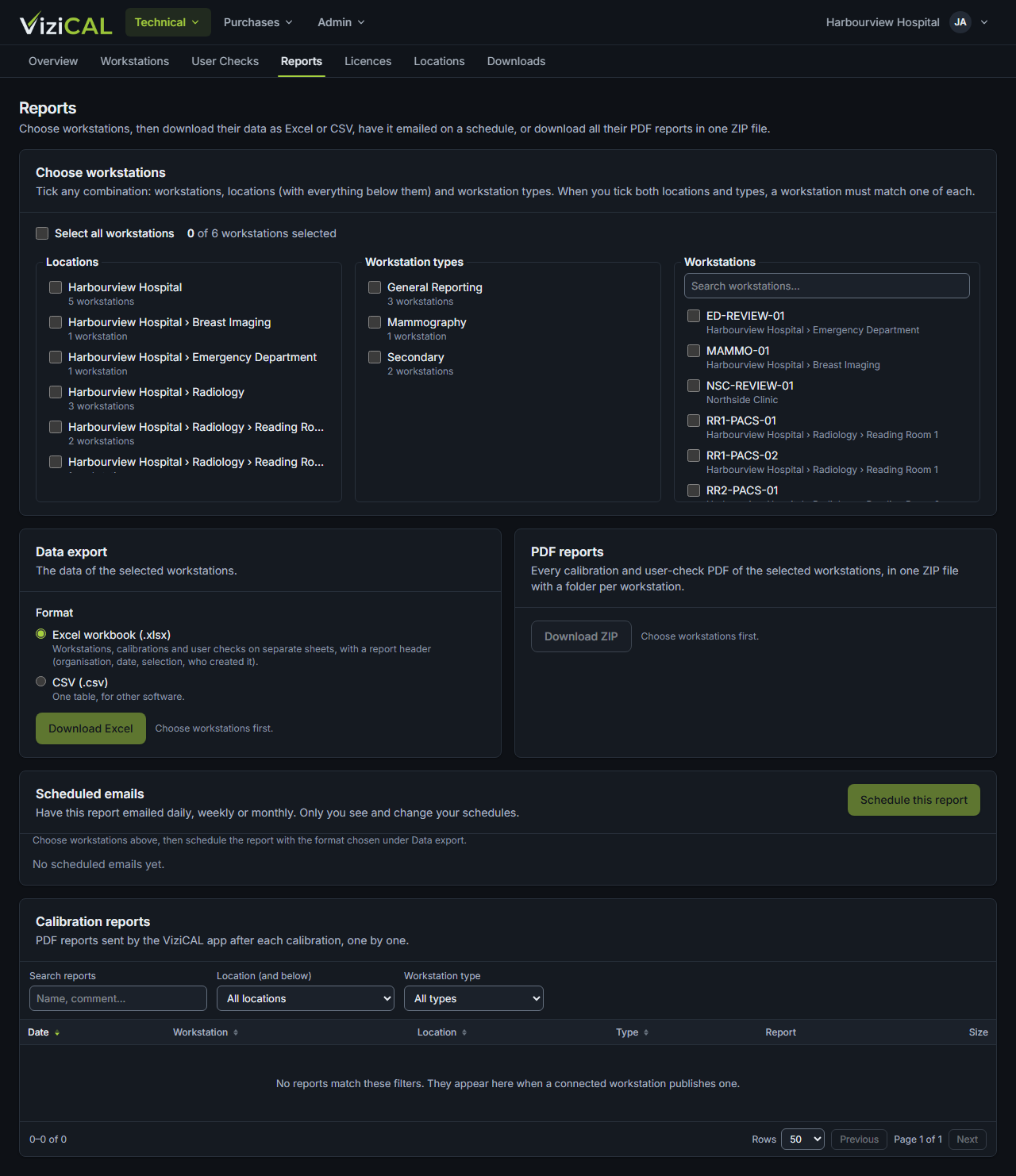
Choose workstations
Under Choose workstations, tick any combination of workstations, locations (with everything below them) and workstation types. Select all workstations ticks them all. Clear selection starts again.
Download the data
Under Data export, choose a Format:
- Excel workbook (.xlsx): workstations, calibrations and user checks on separate sheets, with a report header.
- CSV (.csv): one table, for other software. Choose which Table.
Then click the download button.
Download all PDF reports
Under PDF reports, download every calibration and user check PDF of the selected workstations, in one ZIP file with a folder for each workstation.
Schedule a report email
- Choose workstations and a format.
- Under Scheduled emails, click Schedule this report.
- Type a Name, choose How often (Daily, Weekly or Monthly), the day and the Time.
- Type the email addresses to send it to.
- Click Schedule.
The time is in your organisation's time zone, set in Organisation. Only you see and change your schedules.
For each schedule you can Edit, pause or resume it, Send now, see its History, or delete it.
Calibration reports
Calibration reports lists the PDF reports sent by the ViziCAL app after each calibration. Search for a report and open it.