Admin: Users
Use this page to invite colleagues to your web account, choose what they can do, and remove access.
Open Admin → Users. You need the Customer Admin role.
Invite a user
- Click Invite user.
- Type their Email.
- Choose a Role:
- Customer Admin: everything, including purchasing, billing and users.
- Technical: workstations, displays, calibration and QA records. Can see licences.
- View Only: can read records and reports.
- Click Send invitation.
They get an email with a link to set their password. The link works for 7 days. Until they accept, the invitation is under Pending invitations, where you can Resend or Revoke it.
When they open the link, they see Join with your organisation's name. They type their name and a password, then click Accept and continue.
Change what a user can do
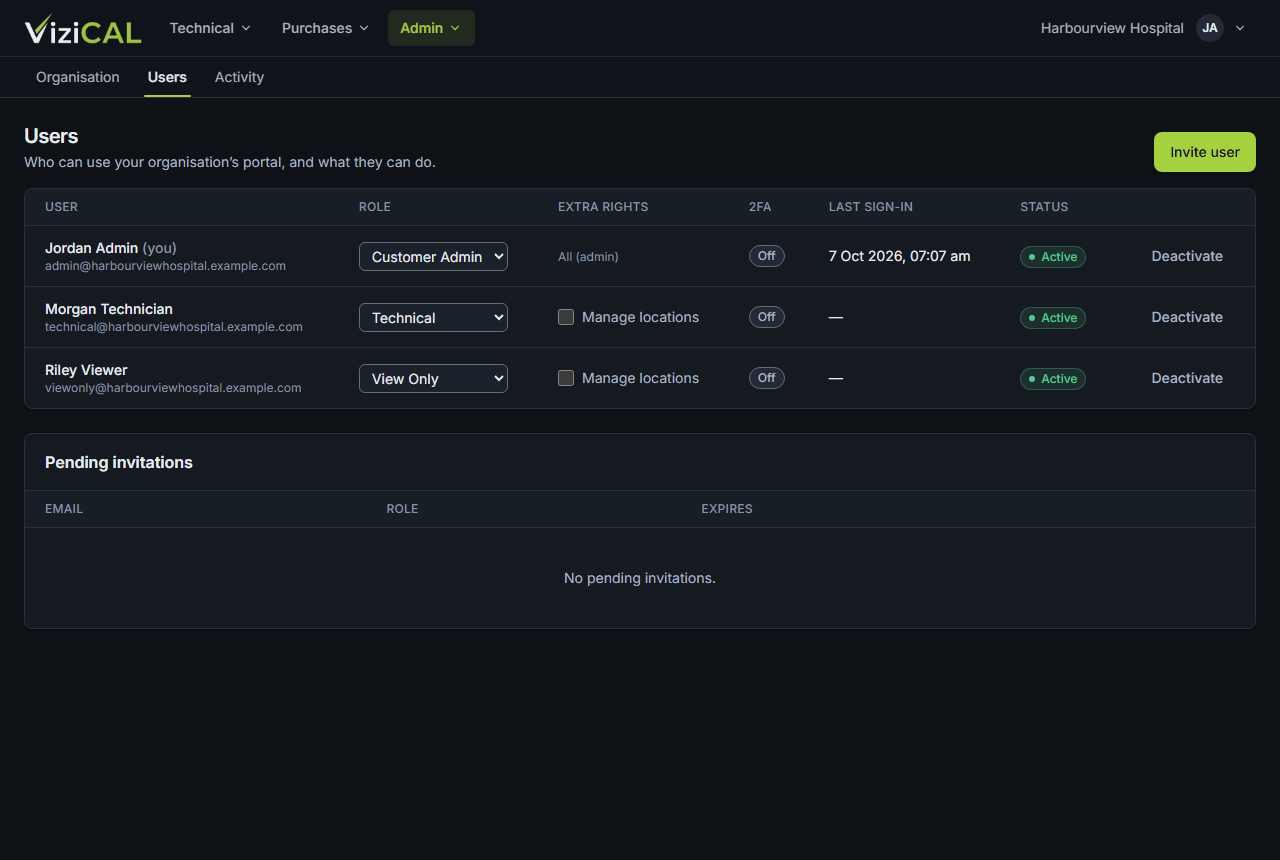
Each user shows their role, whether two-factor authentication is On or Off, and whether they're Active or Deactivated.
- Manage locations: tick to let a Technical user add and change locations. Customer Admins can always manage them.
- Reset 2FA: if a user has lost their phone and recovery codes. They set up two-factor authentication again at their next sign-in.
- Deactivate: remove a user's access. They're signed out straight away. Reactivate gives it back.