Technical: Locations
Use this page to set up your sites, buildings, departments and rooms. Workstations are placed in them, and every technical table can be filtered by them.
Open Technical → Locations.
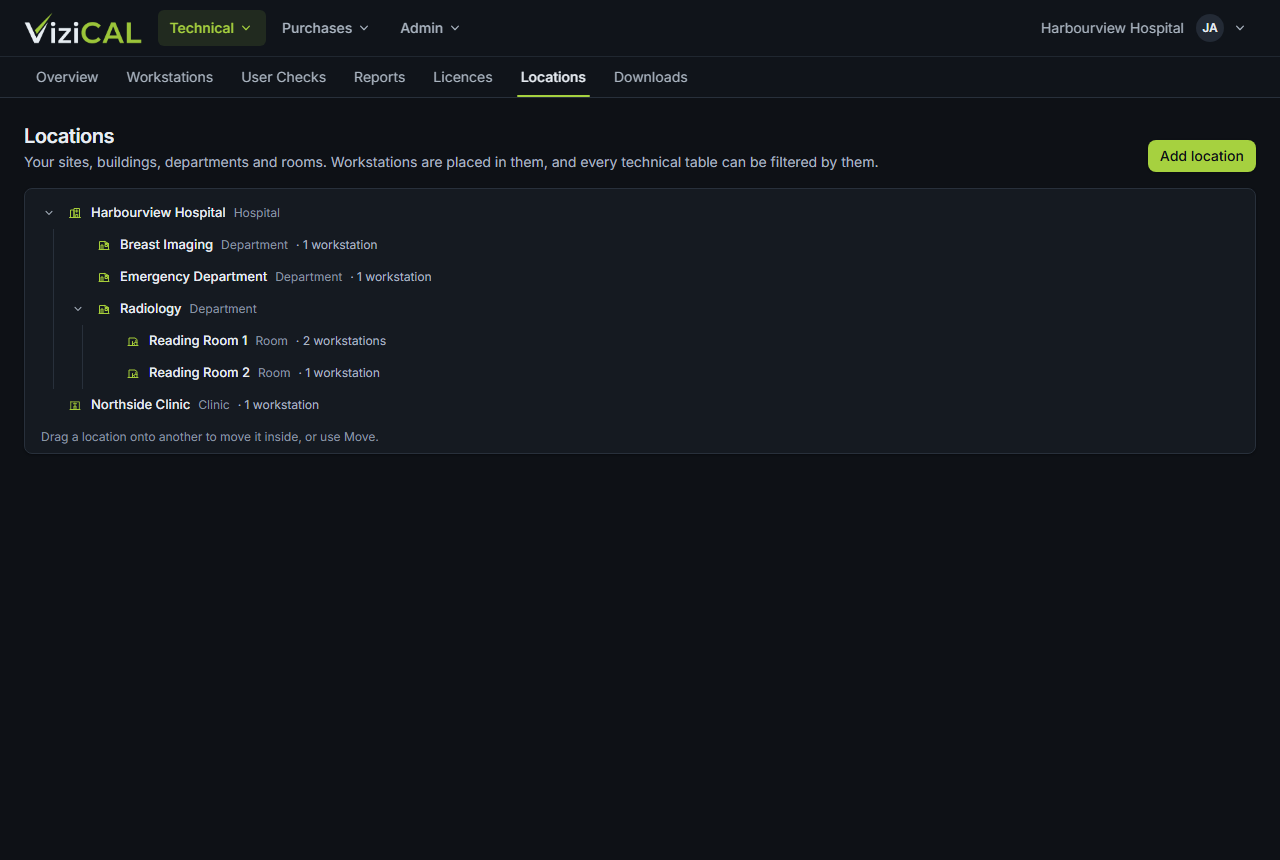
Add a location
- Click Add location for a top-level location, such as a hospital site. To add one inside another, click Add inside on that location.
- Type its Name and choose its Type.
- Click Save.
Change a location
- Rename: change its name or type.
- Move: put it inside another location. Everything inside it moves too. You can also drag a location onto another.
- Delete: remove it. The locations and workstations inside it move up to the location above it (or to no location). No records are deleted.
How the ViziCAL app uses locations
The ViziCAL app offers your locations in Computer Location Description (in Settings → Owner Info, and when you set up a new computer). A location typed in the app is added to the list for next time.
The app downloads the list when it starts. To update it straight away, click Refresh from website in the app. See Owner Info.
Note
You need the Manage locations permission to add or change locations. A Customer Admin can give it to you in Users.