Technical: Workstations
Use this page to see each workstation's calibration, visual checks and status, and to keep its details up to date. A workstation is a computer and its displays.
Open Technical → Workstations. The list updates by itself as results arrive from the ViziCAL app.
The workstations list
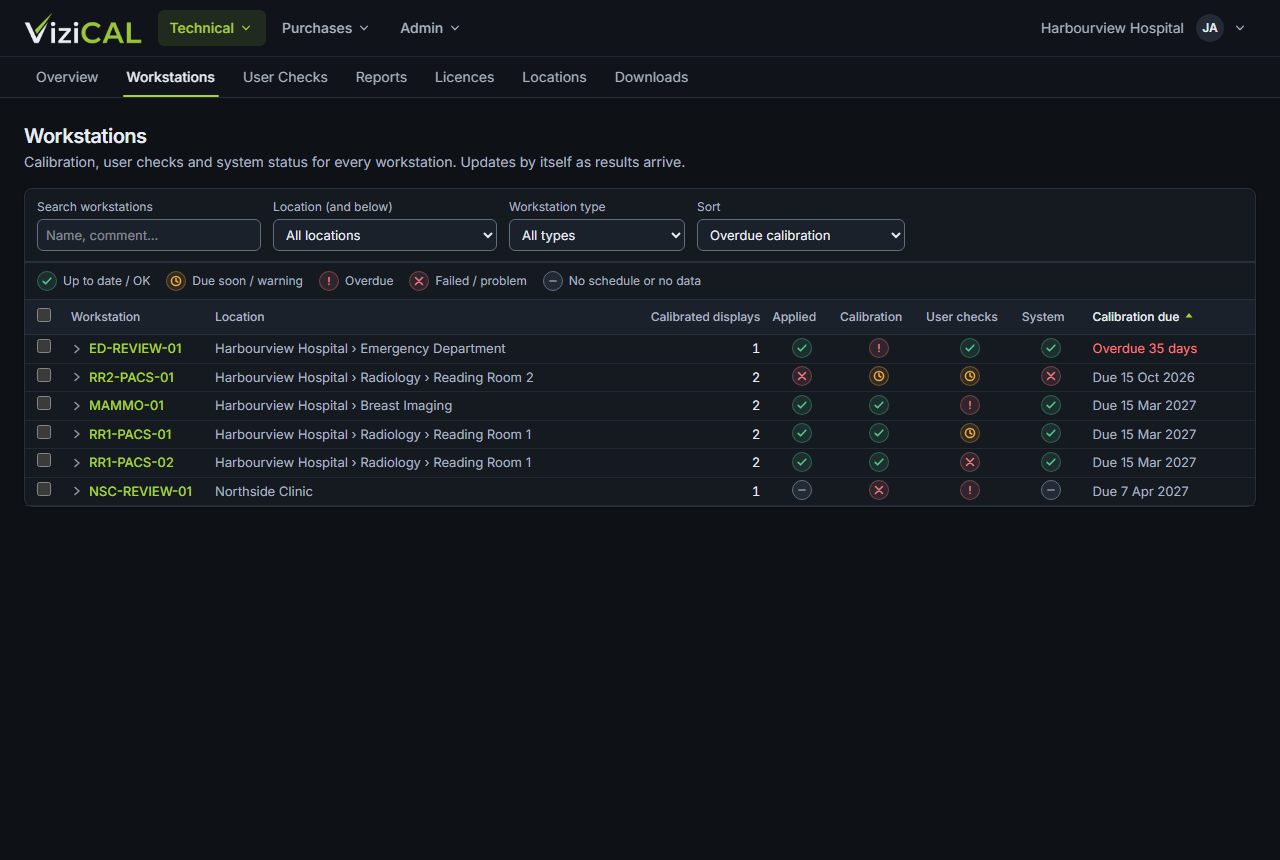
Each row shows the workstation's name, location, type and status icons:
| Icon | Meaning |
|---|---|
| Calibration applied | Whether ViziCAL Apply applied the calibrations at the last Windows sign-in. |
| Calibration | Whether the calibrations are up to date, due soon, overdue or failed. |
| User checks | Whether the visual checks are up to date, due soon, overdue or failed. |
| System status | Whether the workstation's last heartbeat reported problems or warnings. |
Colours: green is up to date, amber is due soon or a warning, red is failed or a problem, and grey is no schedule or no data. Hover over an icon for details.
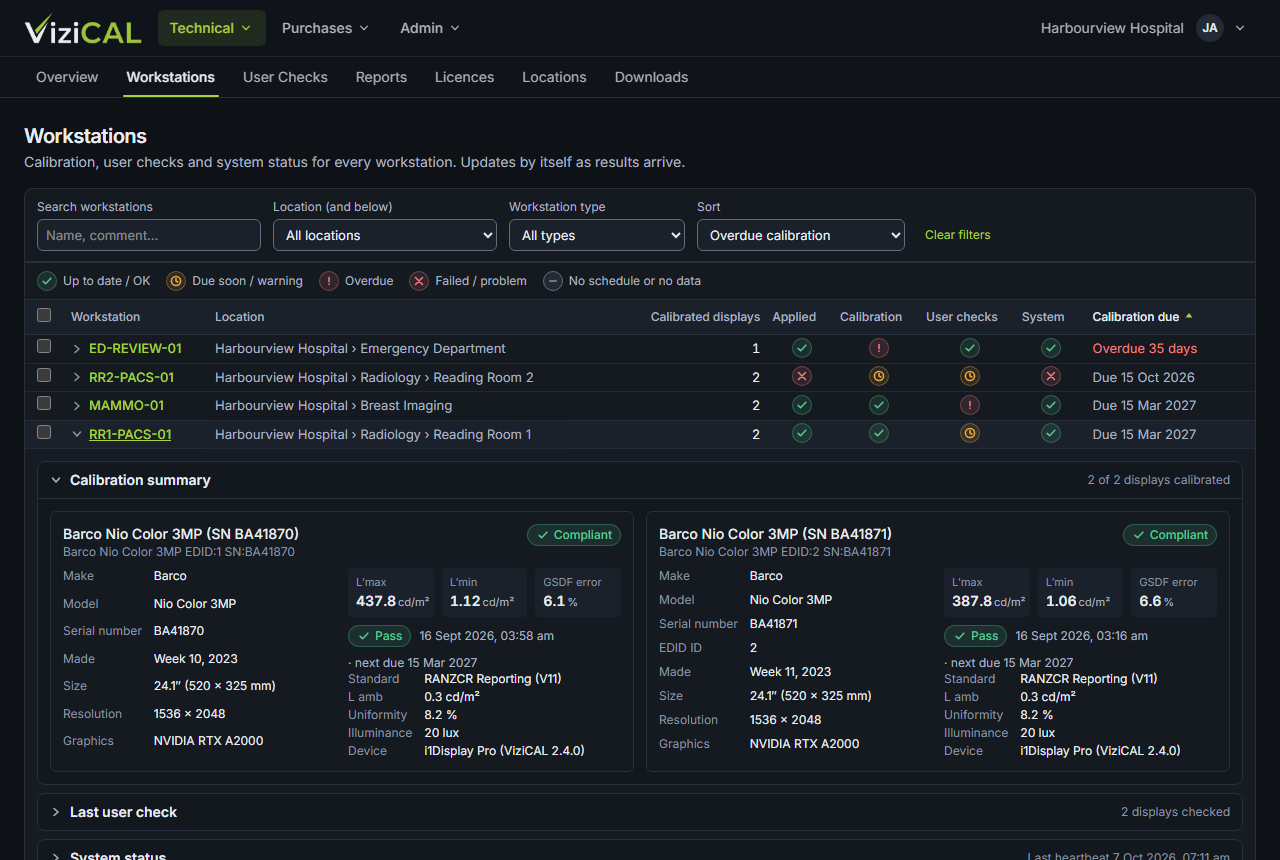
Click a row to open a summary: the Calibration summary of each display, the Last user check and the System status. Click Open the workstation page (records, schedule, displays) → for everything else.
To find workstations, type in the search box, or filter by Location (and below) or Workstation type. Use Sort to change the order.
Choose what the columns show
Use View to change the columns. ViziCAL remembers your choice for next time.
| View | Shows |
|---|---|
| Status | The status icons above (the usual view). |
| Calibration View | For each display: Lmax, Lmin and GSDF error from its latest calibration, and Auto self check. |
| Monitor Information | For each display: Make, Model and Resolution. |
| CPU Information | For each workstation: Windows version, Graphics card, App version (ViziCAL, or ViewIQ for versions before 2.4) and Connected displays. |
In Calibration View, Auto self check is a green tick when the display checks itself with its built-in photometer. Hover over it to see when the check last ran. It applies to LG and WIDE displays only: other displays show N/A. A display with a D65 advisory missed the D65 colour accuracy limit, but D65 accuracy isn't part of its result, so it still passes (see Calibrate a display).
Older versions of the ViziCAL app don't send some of these details. They show Not reported until the workstation has a newer app.

Change several workstations at once
- Tick the workstations.
- Choose an action:
- Move to location: choose a location and click Move.
- Set workstation type: choose a standard, or Automatic from calibrations, and click Set type.
A message confirms the change, with a button to undo it.
A workstation's page
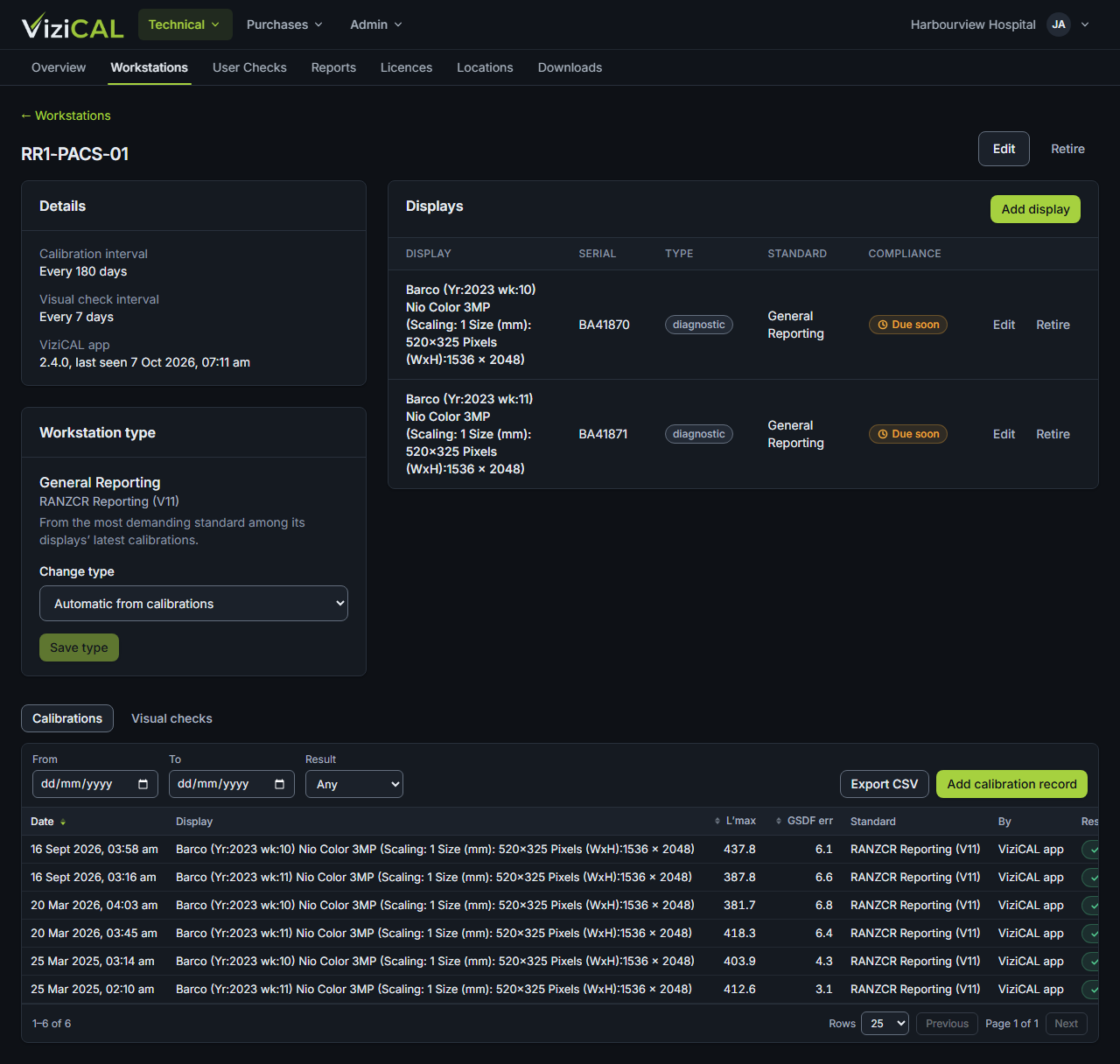
The workstation's page shows:
- Details: Calibration interval, Visual check interval, whether the ViziCAL app is connected, and Notes.
- Displays: each display, with its make, model, serial number and latest results.
- Workstation type: worked out from the most demanding standard among its displays' latest calibrations. Click Change type to set it yourself, or Use suggested to follow the calibrations again.
- Calibrations and Visual checks: every record. Click Open to see a record's details, comments, attachments and history. Click Export CSV to download the list.
Edit a workstation
- Click Edit.
- Change the Name, Location (optional), Calibrate every (days), Visual check every (days) or Notes (optional).
- Click Save.
The ViziCAL app on the workstation uses the new schedule for its reminders after its next heartbeat, usually at the next Windows sign-in.
Add a record by hand
Records normally come from the ViziCAL app. If a calibration or check was done another way, you can record it:
- On the Calibrations or Visual checks tab, click Add calibration record or Add user check.
- Fill in the form and click Save.
Retire a workstation or display
Click Retire to take a workstation, or a display, out of use. Its history is kept.